Turn up to 10 JPG, PNG, or WebP pictures into one editable text result. OCR runs in your browser: choose the source language, proofread the recognized text, then copy it or download a plain-text file.
Extract text locally with Tesseract.js OCR
Upload, drag and drop, or paste screenshots
JPG, PNG, WebP · Up to 10 images · Ctrl+V or Cmd+V works anywhere
Extract a first-pass result from scanned documents, receipts, invoices, and business cards, then verify it against the source.
Convert text from screenshots, social media posts, and images to editable text.
Select from 10 languages including English, Spanish, French, German, Chinese, and Japanese.
Recognition runs locally in this browser tab; Mizakii does not receive the selected image or output.
The same converter accepts all three. The useful difference is how you prepare the image before OCR—not a separate conversion mode.
Best for camera photos of printed pages, signs, receipts, and labels. Crop the background, keep the page straight, and avoid shadows before extracting text.
Best for sharp interface text, error messages, slides, and digital documents. Paste a screenshot directly or upload the PNG without converting it first.
WebP downloads are accepted directly. If small or heavily compressed characters look unclear, use a sharper source image rather than changing only the file extension.
Review names, dates, totals, and punctuation against the source, edit the result in the text box, then copy it or download one .txt file.
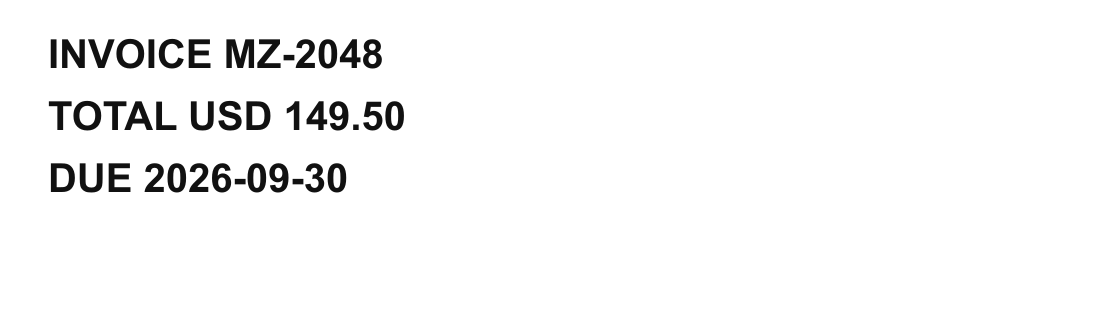
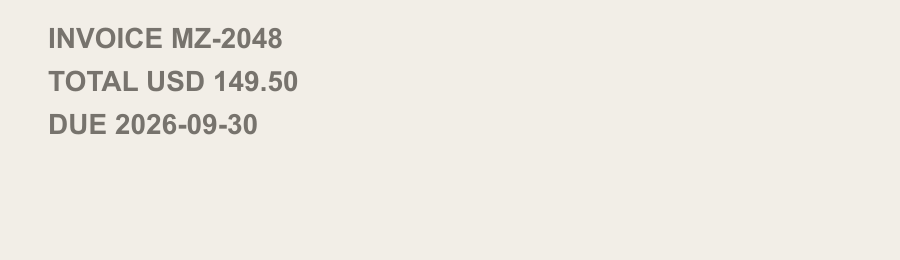
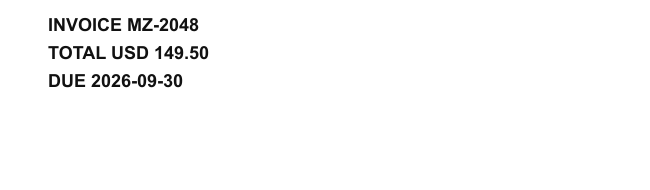
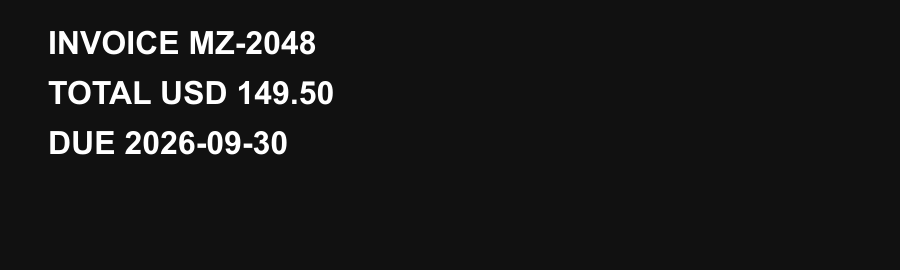
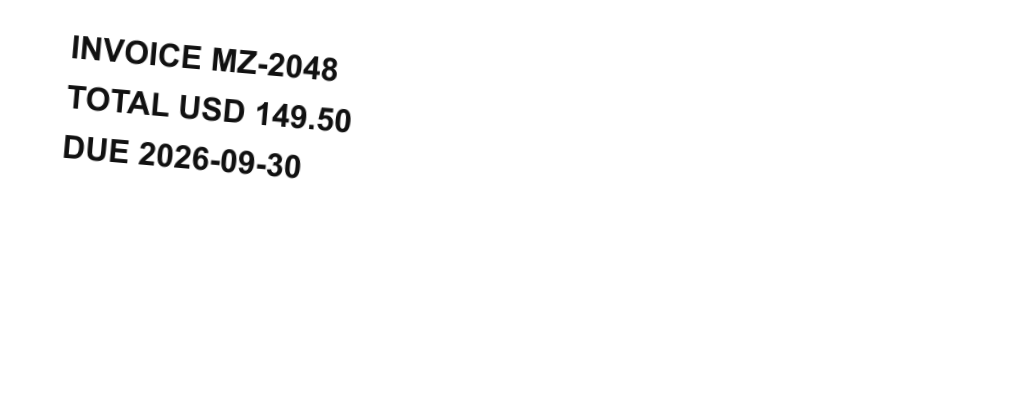
We ran the same Tesseract.js 6.0.1 English engine used by this page against five owned, generated PNG fixtures. Every image contained the same 47-character invoice sample. Only size, contrast, colors, or rotation changed. Character similarity is Levenshtein similarity after trimming and collapsing whitespace; Tesseract confidence is the engine's own estimate, not a guaranteed accuracy rate.
| Fixture | Character similarity | Engine confidence | Evidence |
|---|---|---|---|
| 40 px black text on whiteClean, high-contrast browser-generated text. | 100% | 94 | View PNG |
| 28 px gray text on off-whiteLower contrast and smaller characters. | 100% | 94 | View PNG |
| 18 px black text on whiteSmall but otherwise clean characters. | 100% | 95 | View PNG |
| 32 px white text on blackHigh contrast with inverted colors. | 100% | 94 | View PNG |
| 32 px text rotated 5°A controlled skew without perspective distortion. | 85.1% | 71 | View PNG |
The first four controlled fixtures scored 100% character similarity; the 5° rotation fell to 85.1%. That failure is the useful result: even modest skew can change invoice identifiers, punctuation, and dates.
This benchmark does not establish accuracy for handwriting, phone photos, tables, other fonts, or the nine additional language models. Download the raw JSON results, inspect every fixture above, or rerun npm run benchmark:ocr from the repository. For important records, compare every value with the source image and read the OCR accuracy and troubleshooting guide.
Upload as many as 10 photos, screenshots, or scanned-page images in JPG, PNG, or WebP format. You can drag and drop a batch or paste screenshots with Ctrl+V or Cmd+V.
The selected Tesseract.js language model recognizes visible characters and returns editable text. Always proofread names, dates, totals, and other important values.
Copy the extracted text to your clipboard and paste it anywhere — a document, email, spreadsheet, or translation tool. No retyping needed.
Choose one of the 10 available recognition languages before extraction. Selecting the correct source language improves recognition; this tool does not auto-detect it.
Use batch OCR to assemble text from slides or photographed pages before organizing it in your own notes. This is a transcription starting point, not a substitute for the source: equations, diagrams, citations, footnotes, and multi-column reading order often need manual correction.
Take clear, straight screenshots or photos. Keep one page or slide in each image.
Add up to 10 images in reading order and select the language used in the source.
Compare names, dates, formulas, quotations, and citations against every original image.
Download the combined text, then add headings and your own notes in a document or study app.
Avoid uploading exam papers, student records, or copyrighted material you are not permitted to process. OCR can omit superscripts and symbols; always keep the source images beside the editable notes.
A batch can turn several receipt or invoice photos into one searchable text file. It does not categorize expenses, reconstruct tables, validate tax, or create accounting records. Treat the result as a review queue and verify every financial value against its image.
OCR stands for Optical Character Recognition. It is technology that detects text-shaped regions and predicts the characters inside an image. It outputs machine-readable text you can edit, search, and copy; processing time varies with the language model, image, browser, and device.
This page uses Tesseract.js, a WebAssembly and JavaScript port of the open-source Tesseract OCR engine. It identifies text regions and characters using the language you select, then returns plain text. Recognition is not document reconstruction: columns, tables, spacing, and reading order may not match the source.
Before online OCR tools existed, extracting text from a scanned document or screenshot meant retyping it manually — a slow process prone to errors. Browser OCR can now create a first-pass editable result without installing software or creating an account; processing time and recognition quality vary by image, language model, browser, and device.
| Image type | Typical behavior | Notes |
|---|---|---|
| Screenshot (digital text) | Usually strongest | Sharp edges and high contrast make character boundaries easier to identify |
| Printed document image (300 DPI+) | Usually strong | Standard fonts and a clean single-column layout reduce ambiguity |
| Photo of printed text (good lighting) | Variable | Perspective, shadows, unusual fonts, and low contrast may introduce errors |
| Photo of handwritten block letters | Often inconsistent | Results depend heavily on spacing, letter shape, and image quality |
| Low-resolution or blurry image | Often weak | Crop tightly and capture a sharper source image before trying again |
| Cursive or stylised handwriting | Unreliable | Manually verify or transcribe important content |
| Method | Speed | Accuracy | Best for |
|---|---|---|---|
| OCR (this tool) | Varies by image and device | Must be proofread | One-off and batches of up to 10 images |
| Manual typing | Slow | Human error risk | Short snippets only |
| Copy-paste | Instant | Perfect | Digital text only — not images |
| Desktop OCR software | Medium (setup) | Varies by engine | Large recurring batches and layout-sensitive work |
OCR accuracy depends almost entirely on image quality. These are the most common reasons an extraction comes back garbled — and how to fix them before you upload.
Once you have the extracted text on your clipboard, here are the most common next steps:
Re-encode images with adjustable quality
Convert JPG to PNG format
Generate QR codes
HELP ANOTHER PERSON SKIP THE UPLOAD